
 Capture
For the practice manager
Set up the ClinicPro icon in Evolution
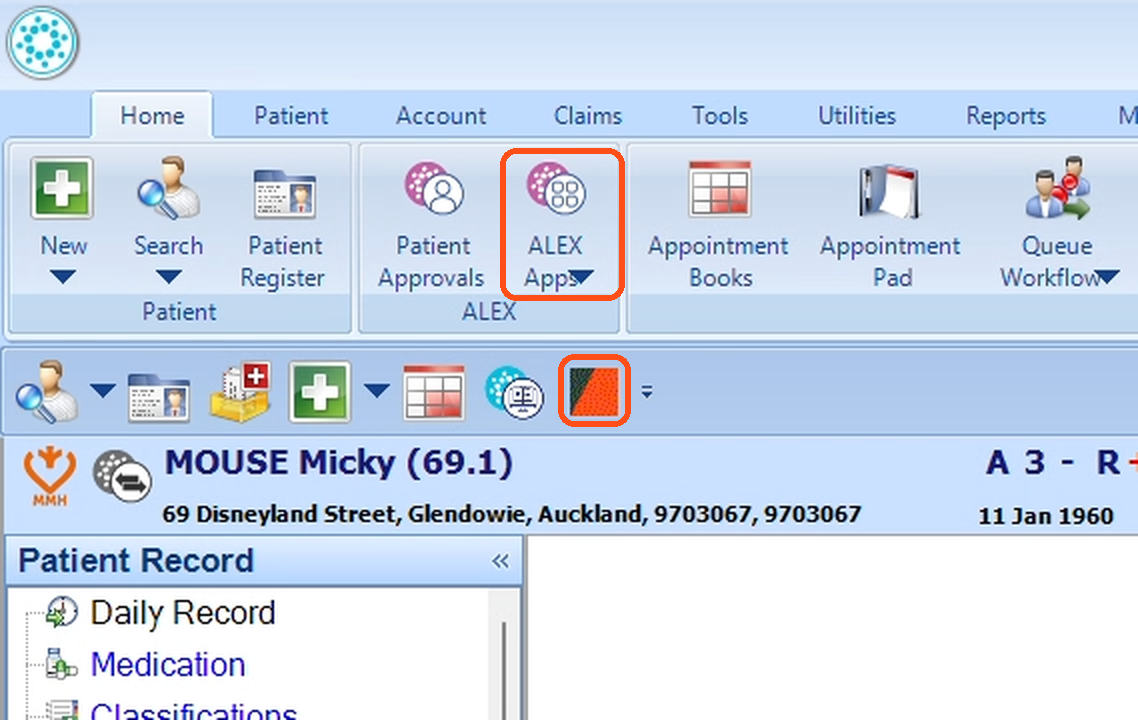
Your staff open Capture from this icon in Medtech Evolution, so it needs to be in place before anyone can take a photo.
What you need
- A computer with Evolutionwith permission to install software
- A practice manager loginthe Evolution login used for settings
- Evolution closedbefore you run the installer
Part 1
Run the installer
Medtech's installer adds the ClinicPro icon to Evolution for you.
- 1
On the Evolution computer, download the installer.
Download the installerIf your browser asks whether to keep the file, choose Keep. It is signed by Medtech.
- 2
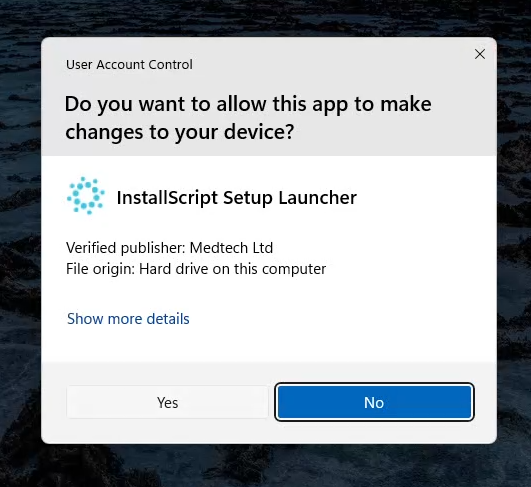
Open it from your browser’s downloads (or your Downloads folder). Windows asks whether to allow it to make changes: check it says Verified publisher: Medtech Ltd, then click Yes.
Seeing a blue “Windows protected your PC” box instead?
Click More info, then Run anyway. - 3
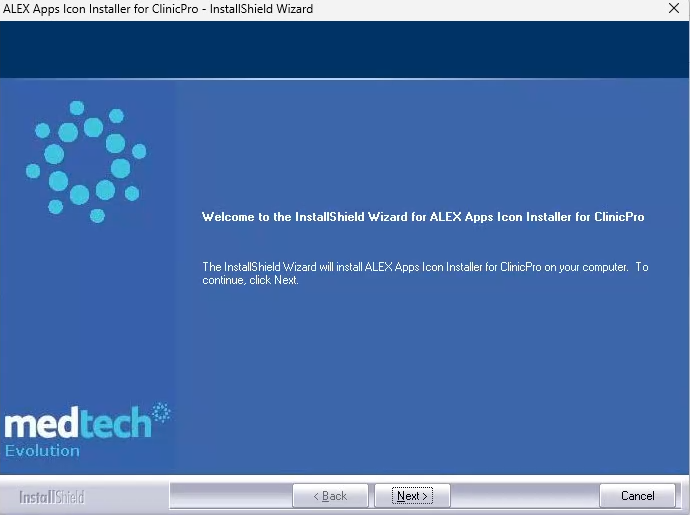
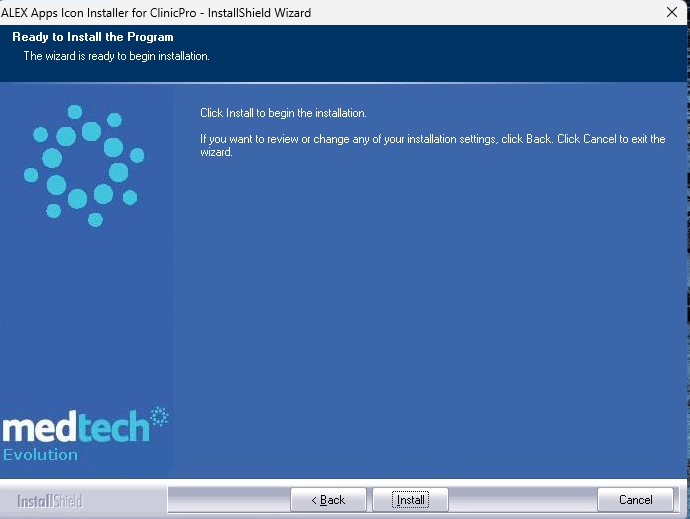
Click Next, then Install.
- 4
Click Finish, then open Evolution again.
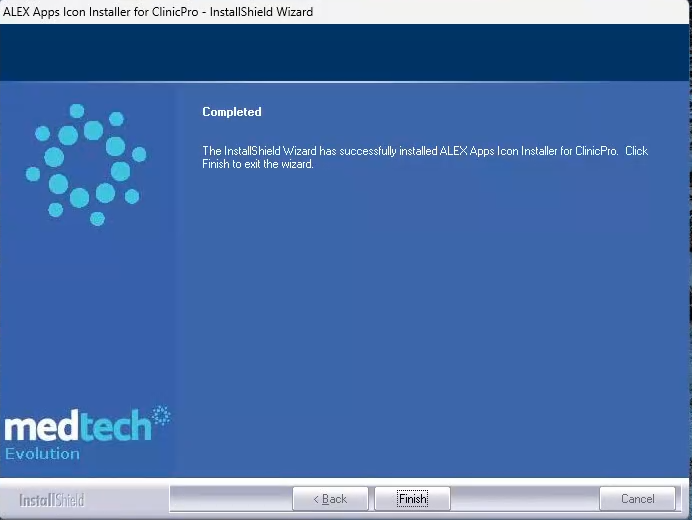
ClinicPro now sits under Home > ALEX Apps, for staff whose role has access. That is Part 2.
Part 2
Give your staff access
Evolution only shows the icon to roles that are allowed to see ALEX Apps. Without this step the icon simply does not appear, with no error message.
- 5
In Evolution, click the round Medtech logo at the top left, then Options. In the list on the left, open Setup > Access Privileges > Role.
- 6
Double-click a role that takes photos (for example GP or Practice Nurse). On the Main tab, under Main Workspace: open Home > ALEX in the Not Selected list, tick ALEX Apps, click Add>>, then OK. Repeat for each role.
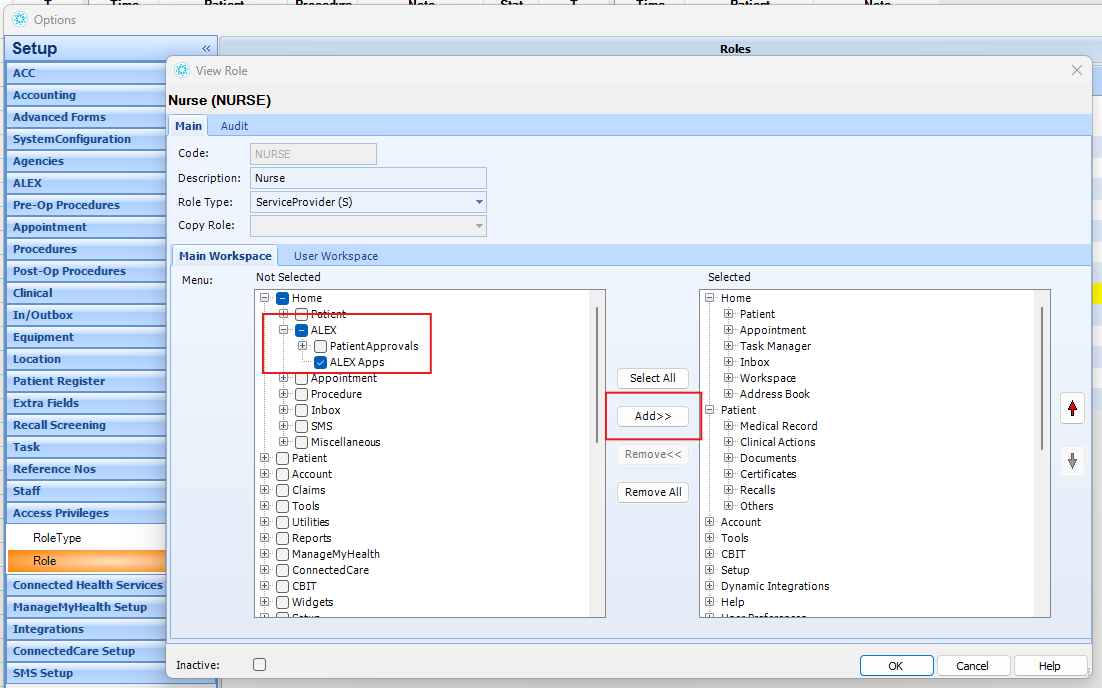
One switch for all ALEX apps
A role you tick also sees any other ALEX apps your practice uses, not just ClinicPro. - 7
Ask staff to close Evolution and log back in. Then open any patient and click Home > ALEX Apps > ClinicPro: a window shows your practice name and a QR code.
If something looks wrong
One person sees the icon and another does not
Their role is missing ALEX Apps. Repeat step 6 for that role.
Nobody sees the icon after the installer finished
If a ClinicPro icon was set up by hand before, the installer may skip it. Email us and we will sort it out.
The icon opens but shows an error
Your ClinicPro account may not be fully switched on yet. Everything here is still correct; let us know and we will check.
Stuck?
Book a setup session and we will do it together on a Wednesday or Thursday, or email us any time. We reply within 24 hours, seven days a week.
ryo@clinicpro.co.nz